


Buying a used Tesla can be an amazing value—strong performance, low running costs, and frequent software updates that keep the car feeling modern years after it leaves the showroom.
But Teslas are not ordinary used cars. They have their own set of things you need to inspect carefully before making a purchase. Before my Tesla Model Y, the first Tesla that I actually bought was a used Tesla Model 3. And I wish back then I know the things I know today.
This guide walks you through every critical area, with detailed instructions on exactly how to check the car properly.
Table of Contents
Battery Health and Range Degradation
The battery is the heart of every Tesla and also the most expensive component. Checking its condition is essential.
How to check Tesla battery health
- Charge the car to 90% or 100% if possible.
Go to the charging screen and look at the estimated range. Compare it to the original EPA range for that model.
Example: A Model 3 Long Range had around 499 km new. If it now shows 440–460 km at 100%, that’s typical. - Ask the seller for a battery report.
Some owners use Scan My Tesla, Tessie, or Teslafi. Even screenshots from these apps help. - Observe charging behavior.
Plug the car into a fast charger (if possible).- Slow charging speeds might indicate throttling or cell imbalance.
- If the battery stops charging before reaching the selected limit, that’s also a warning sign.
- Look for signs of abuse.
Cars used extensively for ride-sharing or frequent DC fast charging can have accelerated battery wear.
Typical battery degradation for Teslas is 5–10% after 150.000 km, but some cars remain healthier.
Drive Unit Condition
Tesla motors are generally long-lasting, but they can develop issues—especially older Model S and X units.
How to check the drive unit in a Tesla
- Test acceleration at different speeds.
If you hear a high-pitched whining or grinding noise, the drive unit might be worn. - Lift off the accelerator at 50–80 km/h.
Listen for humming sounds, vibrations, or clunks. - Check Tesla service history.
Many drive units have been replaced under warranty. Replacements are usually a good sign since newer units are more reliable.
Suspension and Steering Components
Teslas are heavier than most cars because of their batteries, which puts more stress on suspension parts.
What and how to check:
- Upper control arms (a known weak point).
Turn the steering wheel and listen for popping/clicking sounds.
A mechanic can also lift the car and check for play. - Air suspension (Model S and X).
- Raise and lower the suspension through the menu.
- Listen for a noisy compressor.
- Look for uneven ride height.
- Test drive over bumps.
If you hear clunks, rattles, or knocking, suspension bushings may be worn. - Check tire wear.
Uneven patterns (especially inside wear on Model 3/Y) can indicate alignment or suspension issues.
Brakes and Regeneration System
Because Teslas rely heavily on regenerative braking, the physical brakes sometimes suffer from lack of use.
How to check the brakes properly in a Tesla
- Inspect the brake rotors visually.
Look through the wheel spokes for rust rings, pitting, or corrosion. - Check for uneven braking.
During a drive:- Light braking should be smooth.
- If the car pulls to one side, a caliper may be sticking.
- Listen for scraping or grinding.
Rare but possible if the brake pads rusted in place. - Check the parking brake function.
Put the car in “Hold” mode on a slight incline to ensure everything is functioning.
Software Features and Hardware Versions
One of the most important parts of a Tesla is what software and hardware it has. This can drastically change the car’s true value.
What to verify:
- Autopilot Package
Go to Controls → Software.
It will show:- Basic Autopilot
- Enhanced Autopilot
- Full Self-Driving Capability (FSD)
Sellers often make mistakes—or sometimes mislead. - Hardware versions:
- HW3.0 is required for full FSD features.
- You can check hardware version by:
- Asking Tesla service
- Looking in Service Mode if the owner allows
- Checking build year (most 2019+ cars have HW3)
- MCU version (infotainment computer):
- MCU1 has slower performance and can fail more often.
- MCU2 is much faster and supports Tesla Theater (Netflix/YouTube).
Check by opening the browser and YouTube—if it’s fast, it’s MCU2.
- Premium Connectivity
Many used Teslas lose lifetime Premium Connectivity when ownership changes. Check if it’s still active.
Charging Restrictions and Access
Not all used Teslas are equal when it comes to charging.
What to verify:
- Free Unlimited Supercharging
Tesla removed transferability on many cars.
Ask the seller to show it working on their account. - Check if the car is salvage.
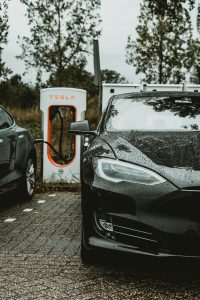
Salvage Teslas often have Supercharging disabled. - DC fast charging speed
Older cars can have reduced speeds after high DC usage.
You can test this by visiting a Supercharger and looking at the peak kW.
Exterior and Body Inspection
Tesla’s panel alignment varies more than traditional brands—especially earlier Fremont-built cars.
How to inspect the Tesla exterior
- Check gaps around doors, hood, and trunk.
Uneven gaps don’t always mean damage, but they matter. - Look for paint mismatch.
Check reflections under direct light to spot repainted areas. - Inspect glass roof and windows.
Look for cracks, chips, or delamination. - Check the underside.
Use a flashlight to inspect the battery skid plates for deep scratches or damage.
A hard hit can be expensive. - Look for bumper misalignment.
Common on Model 3/Y if the car was hit or improperly repaired.
Interior Condition
Tesla interiors are minimalist, but there are key areas to inspect.
How to inspect Tesla interior for damage
- Touchscreen health.
Look for yellow borders or ghost touches (older S/X issue). - Seat wear.
White seats can develop stains or cracks.
Black seats on Model 3/Y sometimes wrinkle. - Rattles and vibrations.
Drive over uneven roads with the radio off. - Window operation.
Auto up/down should work smoothly. - HVAC system.
Turn on full heat and full cooling to check for compressor noise or weak airflow.
Warranty Status
Warranty can significantly influence the car’s value.
How to check Tesla Waranty Status
- Go to Controls → Software.
It shows warranty end dates if you tap “Additional Vehicle Information”. - Battery and Drive Unit Warranty
Verify based on:- Model
- Year
- Trim
A used Tesla with 1–3 years of battery warranty remaining is much safer.
Tesla Service and Repair History
Tesla does not provide a traditional service book, but the seller can access the full records.
Ask for:
- Screenshots of all Tesla service visits
- Drive unit or battery replacements
- MCU1 → MCU2 upgrade
- Suspension repairs
- Warranty claims
- Body repair documentation
This helps identify recurring problems.
Tesla Account Transfer
When buying a Tesla, the transfer of ownership in the Tesla system is crucial.
How to ensure Tesla Account Transfer
- The seller must remove the vehicle from their Tesla account.
- You should request access through the Tesla app.
- Tesla usually approves within 24–48 hours.
- After transfer, check:
- Mobile access
- Charging and climate controls
- Sentry Mode
- Location tracking
If you can’t add the car to your Tesla app, do not complete the purchase until you can.
Check the Car’s VIN History Before Buying
Before you pay for any used Tesla, always run a VIN (Vehicle Identification Number) check. Tesla cars often travel internationally, get imported, rebuilt, or used by companies—so hidden damage is common.
A good VIN report can reveal:
- Previous accidents
- Imported or exported history
- Odometer rollbacks
- Flood or fire damage
- Total loss / salvage titles
- Taxi/ride-share usage
- Insurance claims
- Mileage inconsistencies
- Past repairs
- Recalls
- Whether the car was previously used as a rental
For the most complete Tesla-friendly report, you can use CarVertical, which includes photos, mileage charts, and detailed history.
You can follow this link to get 20% off. If the discount doesn’t auto apply, use the discount code AUTOUVEZI.


