
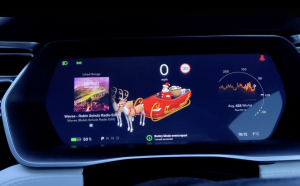




Tesla is known for adding fun and unexpected Easter eggs to its vehicles. One of the most popular is Santa Mode, a holiday-themed feature that brings Christmas animations, sounds, and a festive navigation look to your Tesla. If you’re wondering what Santa Mode is, how it works, or how to activate Tesla’s full Christmas experience, this guide covers everything step by step.
Table of Contents
What Is Tesla Santa Mode?
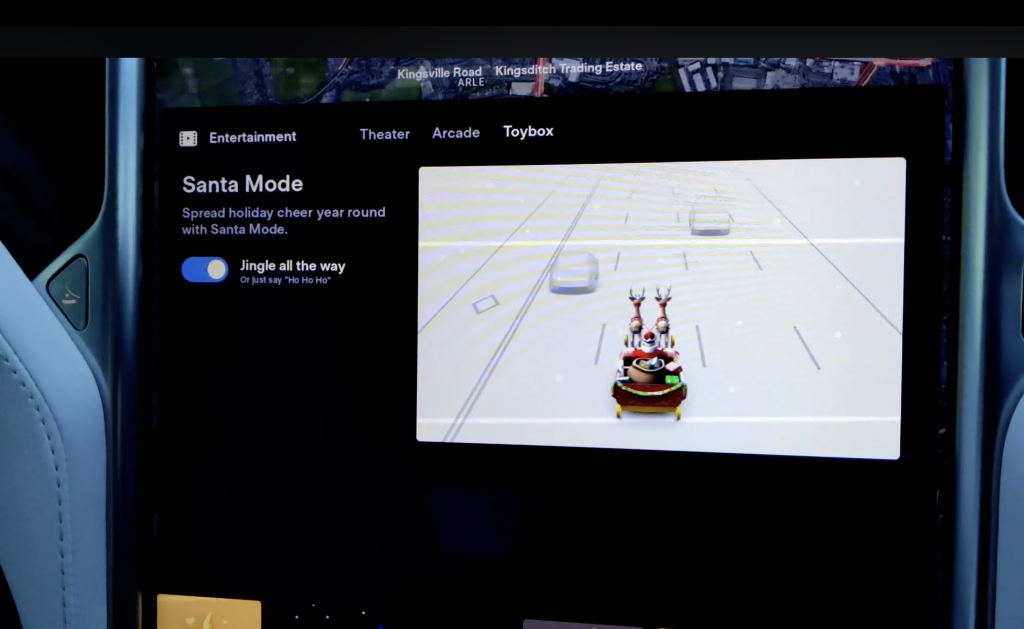
Tesla Santa Mode, often called Christmas Mode or the Holiday Easter Egg, is a festive visual and audio theme that appears on your Tesla display when activated. When enabled:
- The Tesla vehicle icon on your navigation screen transforms into Santa’s sleigh
- Other nearby cars appear as reindeer
- Turn signals can play sleigh bell sounds
- The interface gains a Christmas-style theme
Santa Mode does not affect how the vehicle drives. It is purely for entertainment and holiday atmosphere.
Santa Mode first appeared in Tesla’s 2016 holiday software update and remains a fan favorite every December.
How to Turn On Tesla Santa Mode
You can activate Santa Mode in two simple ways.
1. Activate Santa Mode With a Voice Command
Use your Tesla’s built-in voice control and say:
“Ho Ho Ho.”
To trigger the version with additional audio and music, say:
“Ho Ho Ho Not Funny.”
Your Tesla will instantly switch into Santa Mode.
2. Activate Santa Mode Through the Toybox Menu
If you prefer enabling it manually:
- Tap the Toybox icon (sometimes labeled Easter Eggs) on your Tesla screen.
- Scroll to find Santa Mode.
- Tap Santa Mode to activate the visuals and sounds.
Your navigation map and driving visualizations will immediately change into Christmas style.
How to Turn Off Santa Mode
To exit Santa Mode, simply:
- Tap the Santa Mode icon again in the Toybox
- Or use the voice command: “Turn off Santa Mode.”
Your Tesla will return to its regular interface and sounds.
How to Put Your Tesla Into Full Christmas Mode
Santa Mode is just one part of Tesla’s holiday features. Here are the other Christmas options you can activate.
Tesla Christmas Light Show (Holiday Show)
This feature is available on most Tesla models, including Model 3, Model Y, Model S, and Model X.
To start the light show:
- Open Toybox.
- Select Light Show.
- Park the car, exit, and watch your Tesla perform a synchronized music and light performance.
This includes headlights, taillights, mirrors, windows, and even doors on certain models.
Santa-Themed Navigation Display
Some Tesla software versions automatically apply a winter-style navigation theme after Santa Mode is turned on. If not, you can manually adjust certain features:
- Open Toybox.
- Select Santa Mode.
- Make sure the setting for turn signal bells is enabled.
- Begin driving to see the festive visualizations.

Which Tesla Models Support Santa Mode?
Santa Mode is supported on all newer Tesla models, including:
- Model S
- Model 3
- Model X
- Model Y
Older Teslas with early MCU1 hardware may have limited features, but most still support the basics. If you don’t see Santa Mode, be sure your software is updated.
To update:
Controls → Software → Check for Update
Why you will enjoy Santa Mode
Santa Mode adds a fun seasonal twist to the driving experience. It is a hit among families, passengers, and anyone who enjoys Tesla’s playful personality. It has become a holiday tradition for many Tesla drivers and a popular way to show off Tesla’s unique software capabilities.


